OSA501
The OSA501 Class Blog
February 2021
This is the OSA501 Class Blog space. Learning resources will all be posted here instead of Moodle. MS Teams will be used for daily communication and quick sharing of ideas and instructions. Moodle will only act as the static course place holder for assignments, drop-boxes, etc.
Fun Ubuntu stuff
September 2020
Just a few interesting extension options for Ubuntu: If you install the application called ‘Ubuntu Tweaks’, you will be able to customize your GNOME interface in quite a few ways. One way is for example getting rid of the ugly white menus, if you are working in ‘dark mode’. Enable ‘GNOME Shell Extensions’, download some extra ‘Yaru Dark Mode files’ and enable them in the ‘Tweak Application’ viola – done. Instructions here.
When you have entered the wonderful world of GNOME Shell Extensions, you might as well add the GNOME Extension plug-in to your Firefox browser, which will take you to this website. Enable anything you like in there – and you have for example the weather forecast and a connection to your Android phone in your menu.
Ubuntu on a USB drive as a fault finding- and data recovery option
August 24 2020
A live operating system on USB drive can be useful in many situations. If your PC has crashed or is just struggling, you can boot it up on a USB drive and detect problems on the internal hard drive, from the ‘outside’. Just locate the internal hard drive when your ‘external’ operating system is up running. This way, you would also be able to recover files from the internal drive to another external drive.
Auto start of your PC
August 21 2020
When you work with remote desktop, it might be an advantage to start up your PC entirely remotely. Your BIOS/UEFI has settings to do that. Either via LAN or by you setting a ‘wake up timer’ in the BIOS/UEFI. When it is started up, you can use a remote desktop application, such as TeamViewer.
Running Windows natively in Linux and vice versa
August 21 2020
Over the years, there has been a few initiatives to bring the two very different OS branches, Unix/Linux and MS, closer together without doing an actual virtualization in a hypervisor.
If you are working in Linux, there is a compatibility layer that aims to allow software developed for Microsoft Windows to run on Unix-like operating systems. It can for example be installed from you Ubuntu Software Manager. If you haven’t herad of it , it is no coincidence. It is very unlikely to give you full functionality of your software. Especially if you work with something that has frequent updates.
If you work in Windows10, a recent development of something called ‘Windows Subsystem for Linux ’ (WSL) has become increasingly useful for people wanting to run SSH or if you are a part of a Mac/Unix/Linux orientated development team (for example using GitHub extensively). WSL comes in to versions – one (WSL 1) that is more a layer, such as WINE above and another one (WSL2) is more like a hypervisor. Official Windows documentation will guide you through installation of WSL.
Windows10 unattended installation and answer file
August 17 2020
When you start a new installation of Windows 10, you must go through the Windows Setup, which is the experience that helps you to configure various settings, including language preferences, product key, and partition layout. After the installation, you also have to go through the out-of-box experience (OOBE), which you need to complete to configure settings like keyboard layout, account, and privacy settings.
Link to instructions: Windows10 unattended installation and answer file
Although the process is relatively easy for most people, you still wouldn’t like to go through all of these steps if you need to complete multiple installations in your workplace.
The installation process can be automated (and save time in the process), if you create an ‘answer file’ with instructions to complete every on-screen prompt.
In enterprise environments, there is a variety of tools available to do this – but they are all operating with the same concept of an ‘answer file’.
Therefore I would like you to give it a go – creating and possibly using an answer file.
Word of warning I am saying “give it a go” and “possibly”, because this is really only something enterprises do and Microsoft is changing the Windows installation images and procedures so often, that it is very likely that your answer file won’t work. But – document in your blog what you are doing
Trying you new installation image with an answer file included When you have followed the guide in the link above, you can test it. Ask for a new HD – or do a virtual installation. Don’t ruin your hard earned dual boot system – unless you want to :)
3-2-1 Backup Stratregy
August 13 2020
A 3-2-1 strategy means having at least three total copies of your data, two of which are local but on different mediums (read: devices), and at least one copy offsite. 3-2-1 Backup Stratregy
Installing in Ubuntu – a jungle
August 14 2020
It can be a challenge to find a good way of installing software in Ubuntu. I general Ubuntu is a part of the big general GNU Linux distribution called Debian. Therefore everything that applies to Debian also applies to Ubuntu. For example, when you find and download installation packages, choose the ones ending with .deb
The ‘orange box’ Software Centre in Ubuntu is a tempting place to go. But it is using something called ‘snap’ and therefore often not directly connected to current development branches. Also, snap is rather new in the Linux world and not totally reliable. Also when it comes to application dependencies. Snap can also be run from the CLI (command line)
Another option (better) is to start with the CLI from the beginning. It usually involves 3 steps (lines) that are always defined in the installation instruction.
You can also download the .deb package and extract it. It can be done with the Software Centre Application (Orange box). Just choose it instead of unpacking the package. And make sure the downloaded package is sitting an appropriate place before you install – for example you home folder. You delete the .tar file after installation.
You can also use another pckage managers, such as Gdebi:
- sudo apt-get update
- sudo apt-get install gdebi
Or you can use the CLI fully, by first unpacking the application folder, then navigating into it and run sudo apt install ./my_filename.deb or the dpkg command.
Isn’t the world of Linux just wonderful?
Ubuntu – and it’s flavours
August 13 2020
Problems with GRUP after a few dual boot session
August 12 2020
After having wasted so much time on dual-boot installations that did not work after having booted up a couple of times, we might just have found one solution - make sure to create an initial Partition Table in gpt format before you do anything else with your harddrive/SSD.
Also, and more importantly, it appears that the bootloader of windows10 wants to take over. It can possibly be solved by running this in a Windows command prompt with admin rights: bcdedit /set {bootmgr} path \EFI\ubuntu\shimx64.efi
Bootable USB toolbox
August 12 2020
To create a bootable USB, you can use Unetbootin or Rufus
The following bootable USB drives can come in handy - during this course and possibly after:
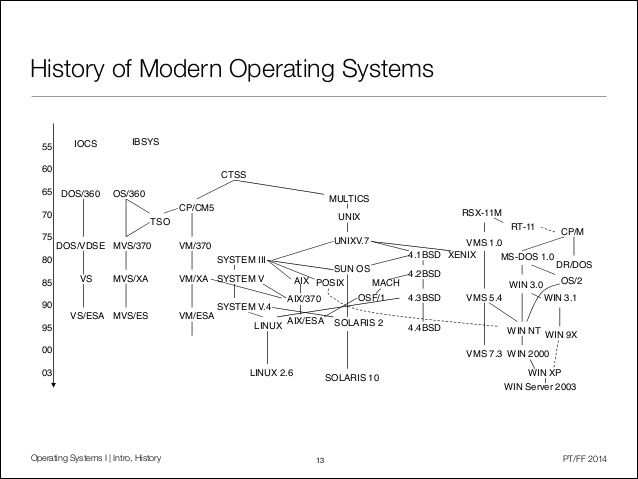
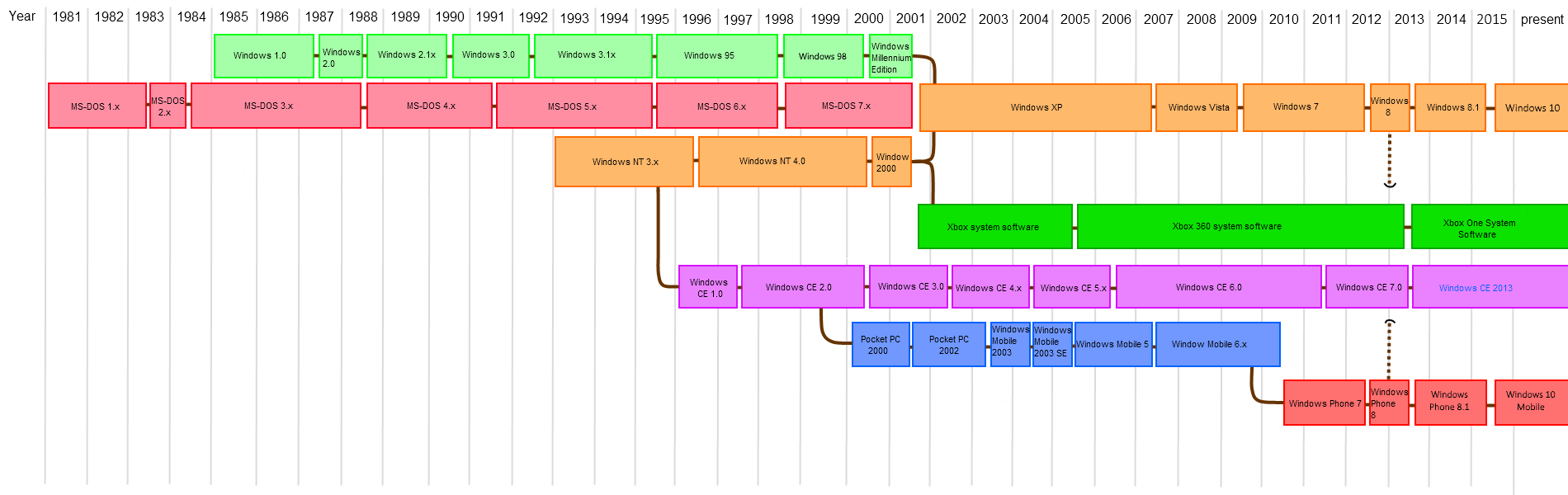
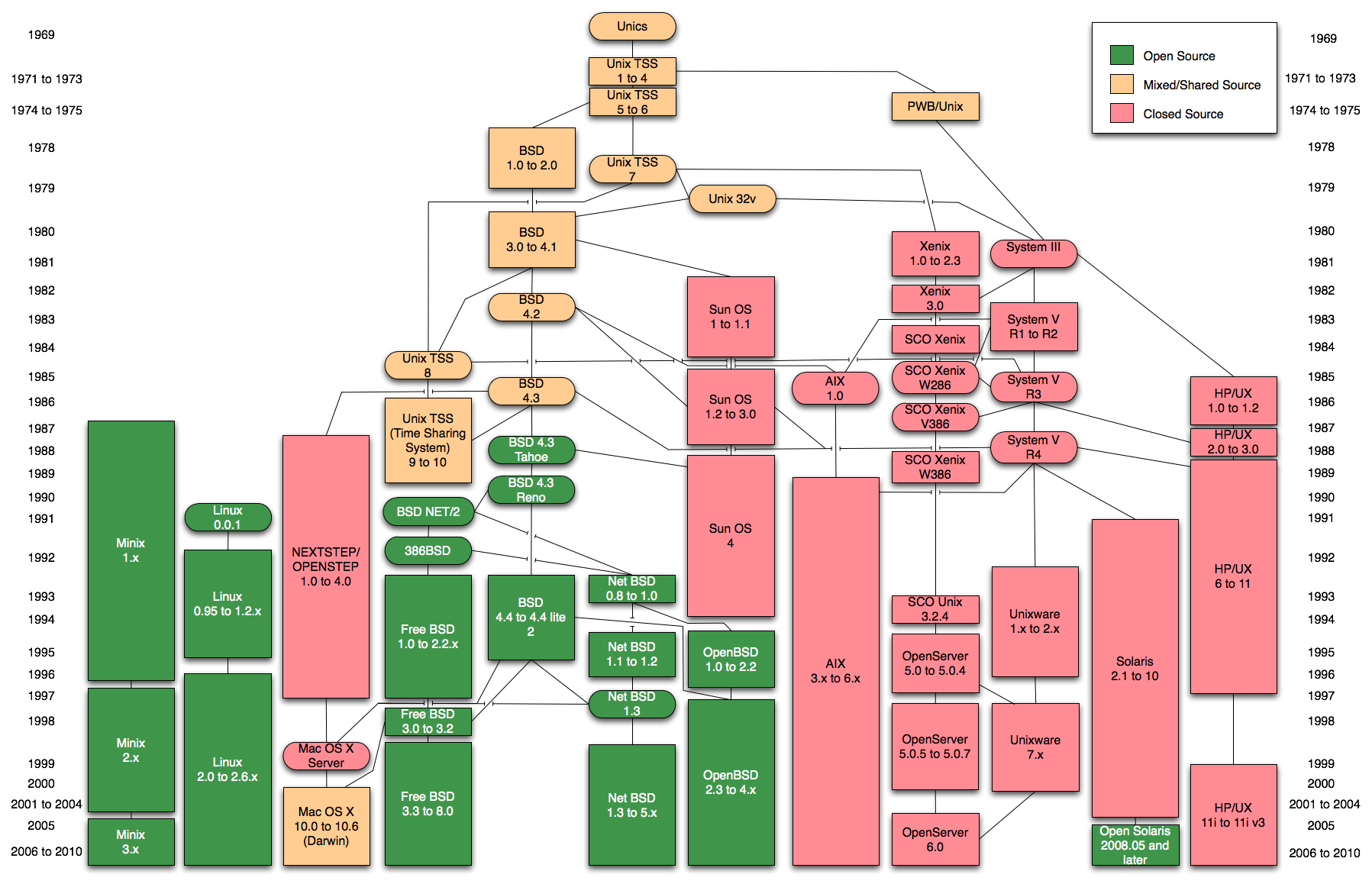
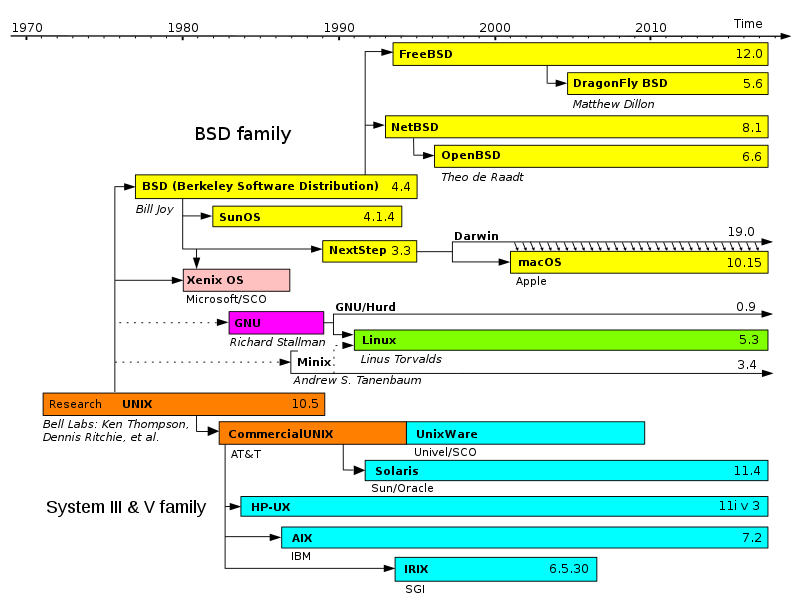
History of operating systems
August 11 2020
We will discuss the following diagrams this week:
Student blogs from last year
Semester 1 2020